iPhone Precise Location for Time Tracking: Setup Guide
Turn on Precise Location on iPhone for GPS clock-ins, pick the right permission, and fix common accuracy problems. Includes Android steps and a manager checklist.
For GPS clock-ins to work on an iPhone, Precise Location must be on for your time-tracking app. Open Settings > Privacy & Security > Location Services, tap the app, and switch Precise Location on. With it off, the app sees only an approximate area, and a clock-in tied to a job site can miss the site entirely. This guide covers the steps, the permission choices, what else affects accuracy, and an Android equivalent for mixed-device teams.
Clock-me
Verify Field Clock-Ins With GPS
Clock-Me combines verified GPS clock-ins, geofencing, and live attendance dashboards to help field teams track time at job sites.
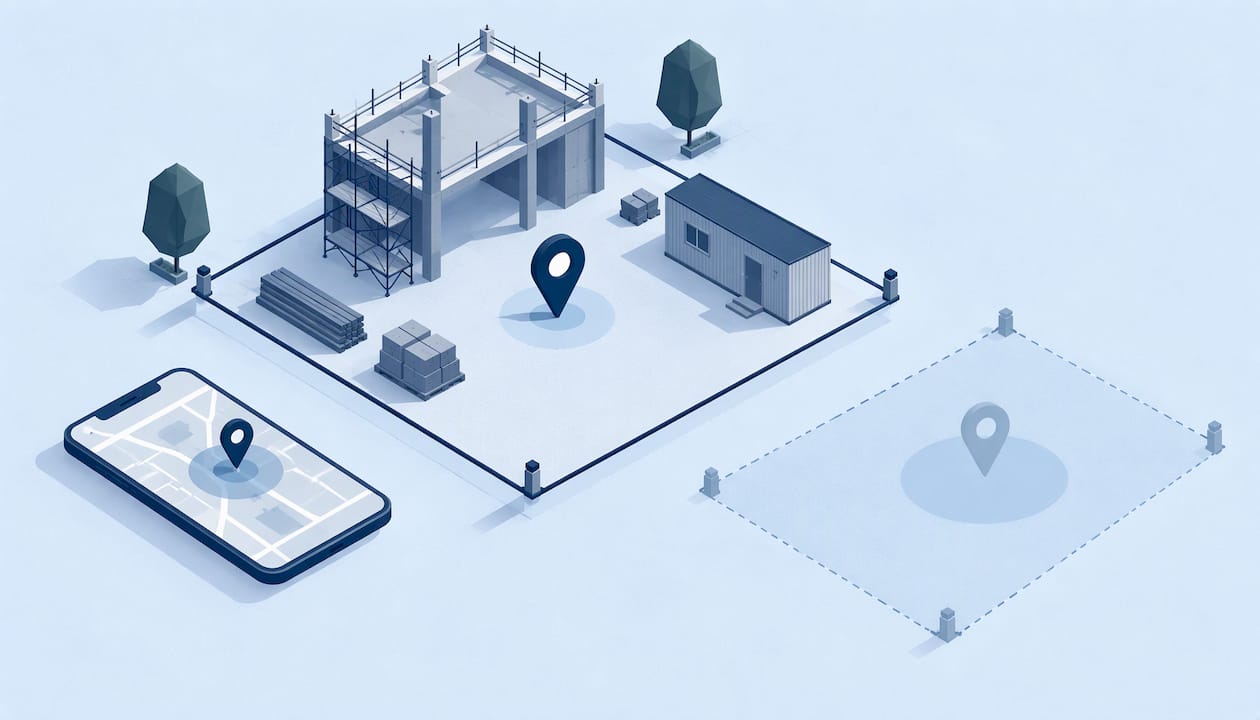
For time tracking, that difference decides whether a clock-in can be checked against a place. A geofence is a virtual boundary drawn around a job site, and the app asks one question: was this punch inside the boundary? A rough area reading can land outside the boundary even when the employee is on site. A precise reading gives the check something reliable to work with.
Have the employee open the app on site and look at the location shown on the map. If the pin sits on the site, you are set. If it sits in the next street, wait a minute and look again. Apple notes that finding all visible satellites can take several minutes, with accuracy improving over time. A phone just taken out of a bag or a truck cab may need that moment to settle.
Pick the narrowest permission that supports the way your team clocks in. Employees are usually more comfortable saying yes when the setting is clearly tied to the moment they punch in or out.
What else affects the accuracy of a GPS clock-in
Precise Location is the first switch, not the only one. A phone can have it on and still report a poor position.
For a field team, that translates into practical advice. Clock in outside the entrance, not in a basement or a parked cab. Dense downtown streets, covered parking and the inside of large structures are the places where readings drift. Roofing and exterior crews often have the best conditions, since they work under open sky. Location blocked by structures is also a topic roofing marketers write about when explaining how blocked satellite signals affect location.
A geofence drawn tightly around a building footprint leaves no room for normal drift. Set the radius to cover the entrance, the parking area and the work zone where crews actually stand. Our blog covers this in more depth in multiple job site tracking for payroll managers.
Power settings and closed apps
Battery settings can quietly break location-based features. Australia’s Fair Work Ombudsman, in the troubleshooting notes for its Record My Hours app, says Low Power Mode, battery optimization, swiping the app closed, or pausing app activity can disrupt automatic shift recording. The same page notes that iPhone users may see problems after an app has been in the background for a long time. That app records shifts automatically, which is different from a tap-to-clock-in flow, but the lesson carries over: if an employee’s location looks wrong, check power settings first.
Android location settings for mixed-device teams
Many field crews run iPhones and Android phones side by side. The concept is the same, with different menu names.
Our view: verify the punch, not the person’s whole day
We built Clock-Me for field teams, and our approach starts from one idea: a time record is strongest when it is tied to a clear moment. A verified GPS clock-in, an identity check and a geofence answer the question a manager actually needs answered: was this person at the right place when they said they were?
That is why our design avoids paper timesheets and continuous background tracking. Precise Location is what makes the verified punch work on an iPhone, so we treat it as part of setup, not an afterthought. We add random location check-ins and device-based fraud detection on top, so buddy punching has fewer places to hide.
For California employers, accurate records matter for compliance, and our platform includes California labor law compliance features and timecard attestation. Employees see a simple one-tap flow. Managers see live dashboards. Both sides know what is being recorded and why.
That is a good argument for event-based design. A clock-in app that reads location at the moment of a punch uses far less power than one that follows the phone all day. Our blog explains the idea in using events, not streams, for employee GPS privacy.
Tips for crews:
Keep the phone charged before the shift, and carry a car charger or battery pack for long days.
If Low Power Mode is on, turn it off before clocking in.
Do not swipe the app closed between punches unless the app tells you to.
Privacy and transparency when you use location
Employees are more willing to turn on Precise Location when they know what it is used for. Tell them in writing: when location is read, what is stored, who sees it, and how long it is kept. Our GPS tracking policy template helps HR finish that document in one work session.
For your own situation, ask your employment attorney or state labor agency about notice and consent requirements where your employees work.
A troubleshooting checklist for managers
When a clock-in shows the wrong place, work through these in order.
Check Precise Location. Settings > Privacy & Security > Location Services > the app. It should be on.
Check the permission. It should not be set to Never. While Using the App suits tap-to-clock-in.
Check Location Services. The master switch at the top of the screen must be on.
Check power settings. Turn off Low Power Mode and look at any battery optimization.
Look at the surroundings. Indoors, underground or between tall buildings, ask the employee to step outside and wait a moment.
Wait for the fix. Give the phone a minute with the sky in view after unlocking it.
Review the geofence. If many valid punches fall just outside, widen the radius around the site.
Update the app and iOS. Old versions can behave differently.
If the problem repeats for one employee on one phone, reinstalling the app and approving the permissions again usually resets the setup.
Where Clock-Me fits
If your crews already have the settings right and you want punches that hold up, Clock-Me brings GPS-verified clock-ins, identity verification, geofencing and random location check-ins into one app. Managers get live dashboards, timesheet approval and payroll export.
Plans are based on the number of active employees. The Free plan costs $0 per month. Paid plans are Starter at $31.99 per month, Growth at $54.99 per month, Business at $99.99 per month, Pro at $224.99 per month and Corporate at $439.99 per month. Enterprise has no published price. Start with Clock-Me and set up your first job site today.
How do I enable Precise Location on my iPhone for a work app?
Go to Settings > Privacy & Security > Location Services and tap the app. Switch Precise Location on, then choose While Using the App if the app only needs your location when you clock in. Apple describes these steps on its Location Services support page.
Does the app need “Always” location permission to track time?
Not for a tap-to-clock-in flow. While Using the App gives access when the app is visible on screen, which covers a punch made with the app open. Always allows access in the background, so it matters only for features that run when the app is closed.
Why does my clock-in show the wrong spot even with Precise Location on?
Signal conditions are the usual cause. Buildings, covered areas and indoor spaces can block or reflect satellite signals, and the phone then leans on Wi-Fi or cellular data. Step outside, wait a minute and try again, and check that Low Power Mode is off.
Do Android phones have the same setting?
Yes. Android calls it precise location versus approximate location, found under the app’s permissions. Choose the option to allow location only while using the app and keep precise location on.
Can an employer require employees to turn on location?
Rules vary by state and country, and they often turn on notice, purpose and proportionality. Put the policy in writing, explain when location is read, and check requirements with an employment attorney in your state.